 by
by
🎉 KO4FUN 2FA Security Update 🎉
Your account security is our priority 🔐
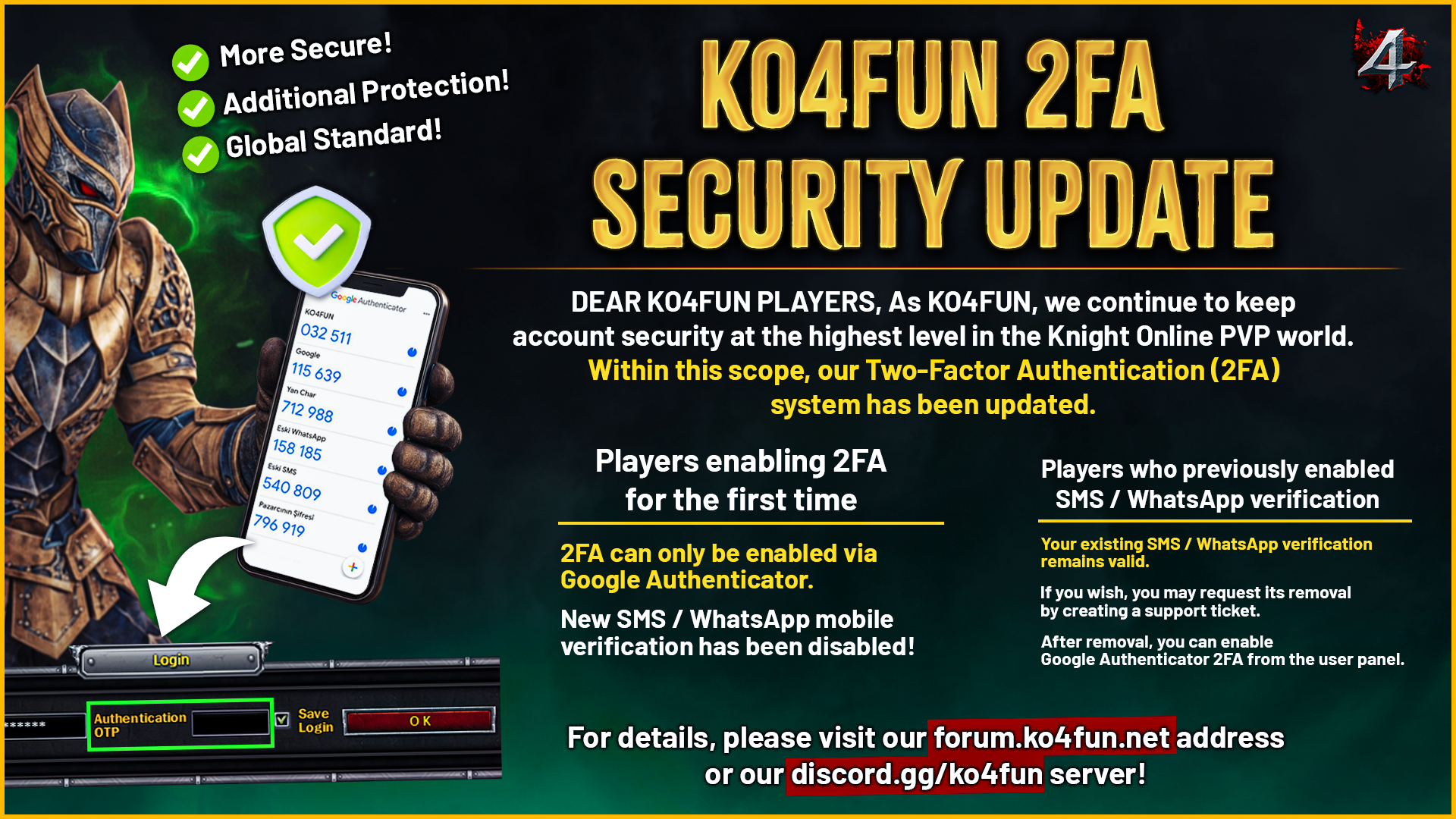
As KO4FUN, we continue to keep account security at the highest level in the Knight Online PVP world. Within this scope, our Two-Factor Authentication (2FA) system has been updated.
🔒 How Does the 2FA System Work?
2FA provides an extra layer of verification during critical security actions on your account.
If Google Authenticator 2FA is active on your account, you are required to enter the Google Authenticator verification code when logging into the game (currently this feature is only active in the x64 client), when logging into your account via our web panel, and when disabling OTP.
📲 New 2FA System
🟢 Players enabling 2FA for the first time:
- 2FA can only be enabled via Google Authenticator.
- New SMS / WhatsApp mobile verification has been disabled!
🟡 Players who previously enabled SMS / WhatsApp verification:
- Your existing SMS / WhatsApp verification remains valid.
- If you wish, you may request its removal by creating a support ticket.
- After removal, you can enable Google Authenticator 2FA from the user panel.
🛡️ Google Authenticator Advantages
- Higher account security
- One-time, constantly changing verification codes
- Additional protection when disabling OTP
- System compliant with global security standards
👉 2FA Settings
Go to User Panel⚠️ Important Reminders
- When Google Authenticator is active, disabling OTP requires a verification code.
- New SMS / WhatsApp verification cannot be enabled!
- Existing mobile verifications will not be disabled unless the account owner submits a ticket request.
- Account security is the responsibility of the player!
📸 Google Authenticator Setup Steps
Step 1 - Click the “Set Up 2FA Verification Now” button.

Step 2 - Click the “Send Email Verification Code” button.
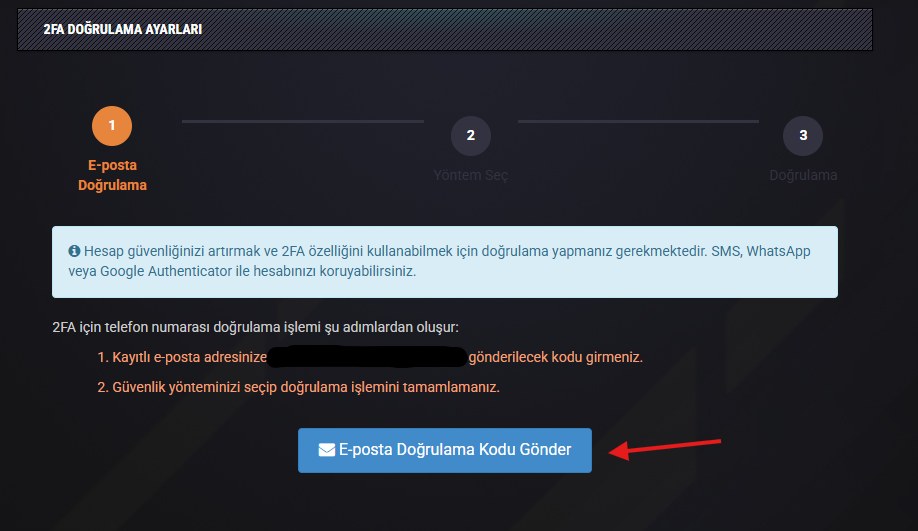
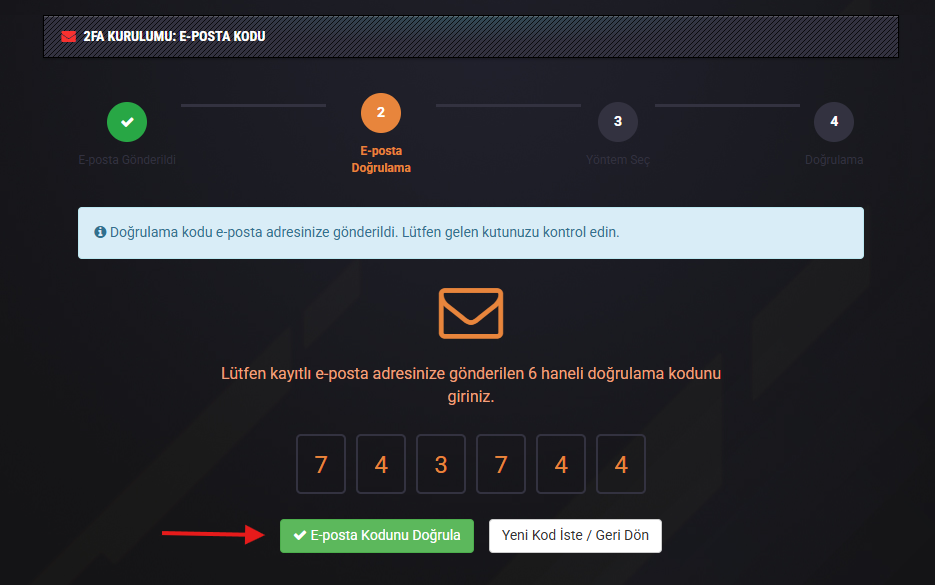
Step 3 - Enter the OTP code sent to your email and complete the verification.
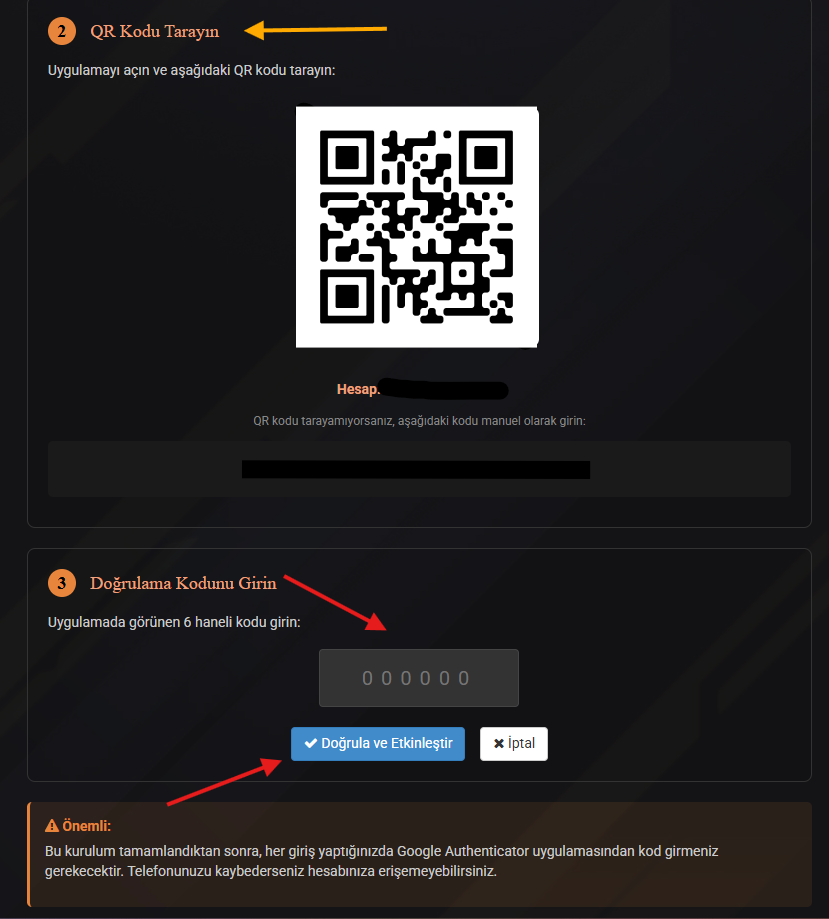
Step 4 - If Google Authenticator is not installed on your phone, download it from the App Store or Google Play Store.
If it is already installed, open the app, tap the + button, scan the QR code below, and link it to your account.
After linking, enter the 6-digit KO4FUN code from Google Authenticator into the field below and activate 2FA.
If it is already installed, open the app, tap the + button, scan the QR code below, and link it to your account.
After linking, enter the 6-digit KO4FUN code from Google Authenticator into the field below and activate 2FA.
💥 KO4FUN MANAGEMENT TEAM